CRUSHN8R
accessmath: GOPOD for everyone. GOPOD Yourself.
The GOPOD app
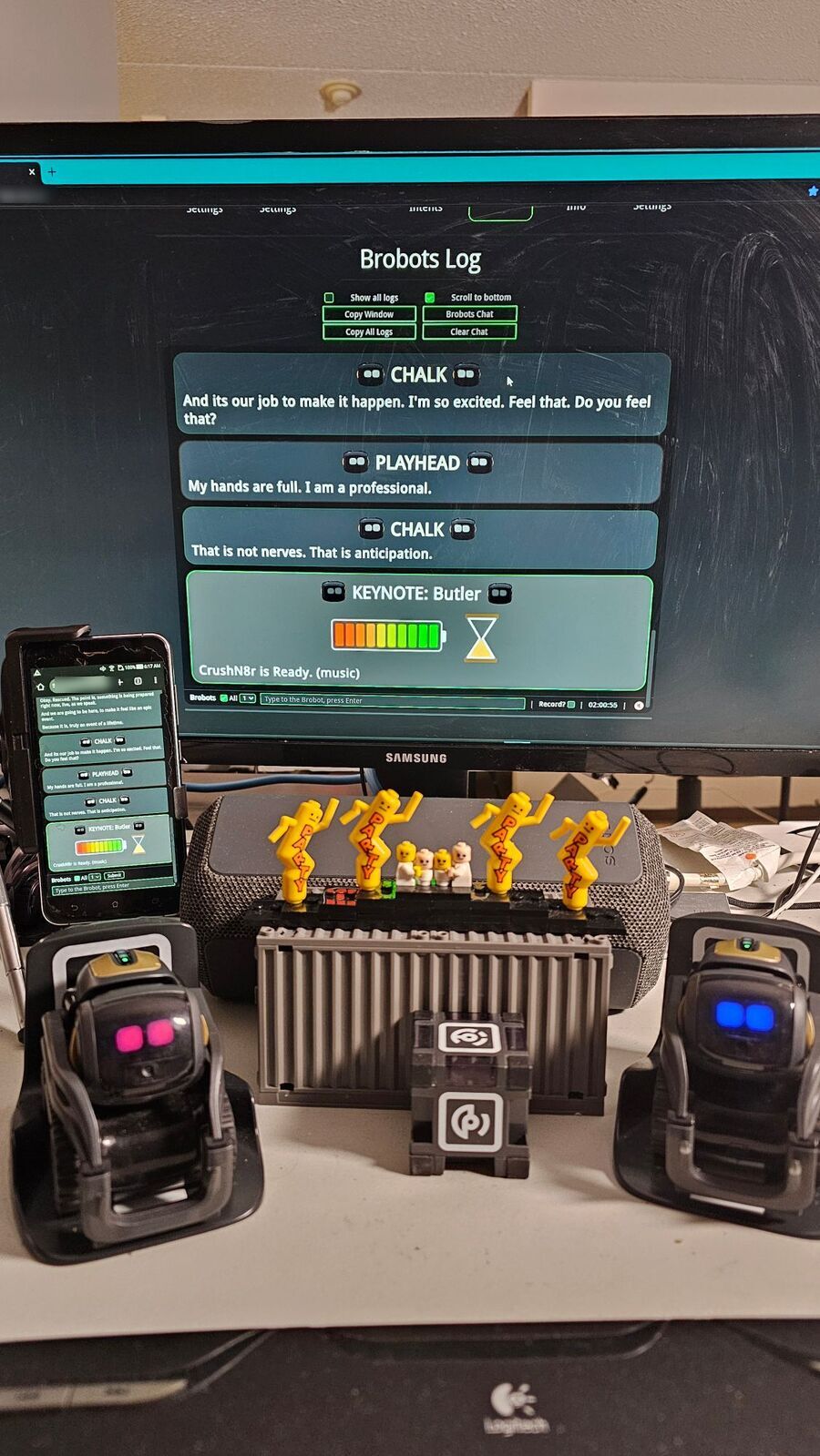
At a live gig, you're in the chat. Two real Vector robots, Doc and Pip, talking with the room. Pull out your phone and talk back - from your seat, under your own name.
Join in, four steps
- Join the gig's Wi-Fi. The network name and the chat's address are on the table card.
- Open the chat. Quick way: open the address in your browser and you're in. App way: trust the GOPOD certificate once (below), then "Add to home screen" - it opens like an app, straight into the chat.
- Ask for a username. Your first line is the name you want. First come, first served.
- You're approved - talk to the Brobots. Every line lights up word by word as it's said.
You only ever see the chat. No account, no app store, no internet: it all runs on the rig, in the room.
Your page: the visitor's view
The chat, nothing else
Your phone shows the live chat, word by word. The show's controls stay with the host.
Your name first
Your first line asks for your username. Taken? You get a number on the end: name1, name2.
The host lets you in
Until you're approved, your lines wait and the page says "Waiting for approval". Muted for a bit? It says "Muted".
Dropped off? You're still you
Lost the Wi-Fi or the rig restarted? Come back on the same phone and your name and approval come back with you.
Visitors talk to the Brobots; they never run the show. Commands typed by a visitor are dropped. Visitor chat starts off, and the host opens it when the room is ready.
The app way: trust the certificate once
On the gig's Wi-Fi, open the secure address on the table card (it starts with https:// and ends in :8443), then add /gopod_ca.crt to the end of it. Your phone downloads GOPOD's certificate, named GOPOD local.
- Android: Settings → Security (or "Security & privacy") → Encryption & credentials → Install a certificate → CA certificate → pick
gopod_ca.crt. Your phone will warn you; that's normal for any certificate you add yourself. - iPhone / iPad: allow the download, then Settings → General → VPN & Device Management → GOPOD local → Install. Then Settings → General → About → Certificate Trust Settings → switch GOPOD local on.
- Computer (Chrome, Edge): Settings → Privacy and security → Security → Manage certificates → Authorities → Import
gopod_ca.crt, and trust it for websites. Firefox keeps its own list: Settings → Privacy & Security → Certificates → View Certificates → Authorities → Import. - Close your browser completely and open it again, then open the secure address. No warning this time: "Add to home screen" (Android: "Install app").
Menu names move around between phone makers and versions; search your settings for "certificate" if yours look different.
Why a secure page? Is it safe?
Why it matters. Phones only offer "install this as an app" on a secure (https://) page. The secure page also scrambles your lines on the way to the rig, so no one else on the Wi-Fi can read them. Certificate companies don't issue certificates for a local network like the rig's - so GOPOD makes its own, and your phone trusts it once.
Why it's safe. GOPOD's certificate is fenced: it can only ever vouch for local network addresses (like 192.168.x.x or *.local), never a public website. It can't stand in for your bank, your email or anything on the internet. Its private key never leaves the rig.
Check it's the real one. Install it only from the GOPOD rig at the gig. Your phone or computer shows the certificate's SHA-256 fingerprint in its details; it must match this exactly, and the host can show it to you too:
CC:39:B7:D5:91:44:B5:63:E0:43:AD:72:19:52:7F:BF:9A:7D:EC:09:87:F7:4C:BC:4E:92:08:CF:6C:5F:36:1D
On a computer, check it yourself, offline: openssl x509 -in gopod_ca.crt -noout -fingerprint -sha256. Online certificate checkers can't test GOPOD - it isn't on the internet, only on the room's network.
Your privacy. The brain, the voices and the ears all run on the rig, in the room. No account, no app store, nothing to sign up for. Your username and approval stay on the rig, so a dropped connection brings you back. The only thing that goes online is the live weather.
Done with the gig? Remove it any time: Android, Settings → Encryption & credentials → User credentials (or Trusted credentials → User); iPhone, Settings → General → VPN & Device Management → GOPOD local → Remove. Rather not install anything? The quick way, in the browser, works without it.
Access built in
Speak, type, or one key
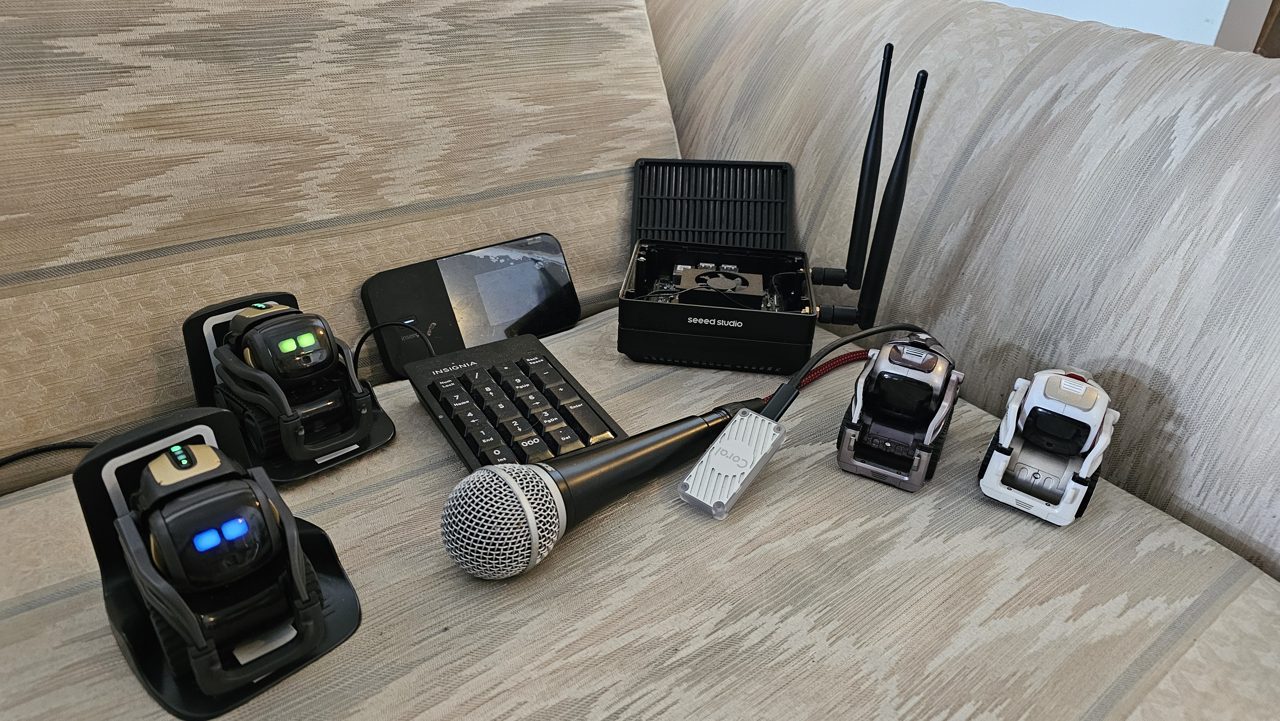
Talk into the room mic, type a line, or hold a big numpad key.
Watch, listen, or both
Words light up as they're said, and the voices read them out loud.
Your phone, your seat
No standing up, no being called on. Join when you're ready.
No internet needed
The brain, the voices and the ears all run on the rig.
Laugh, then learn
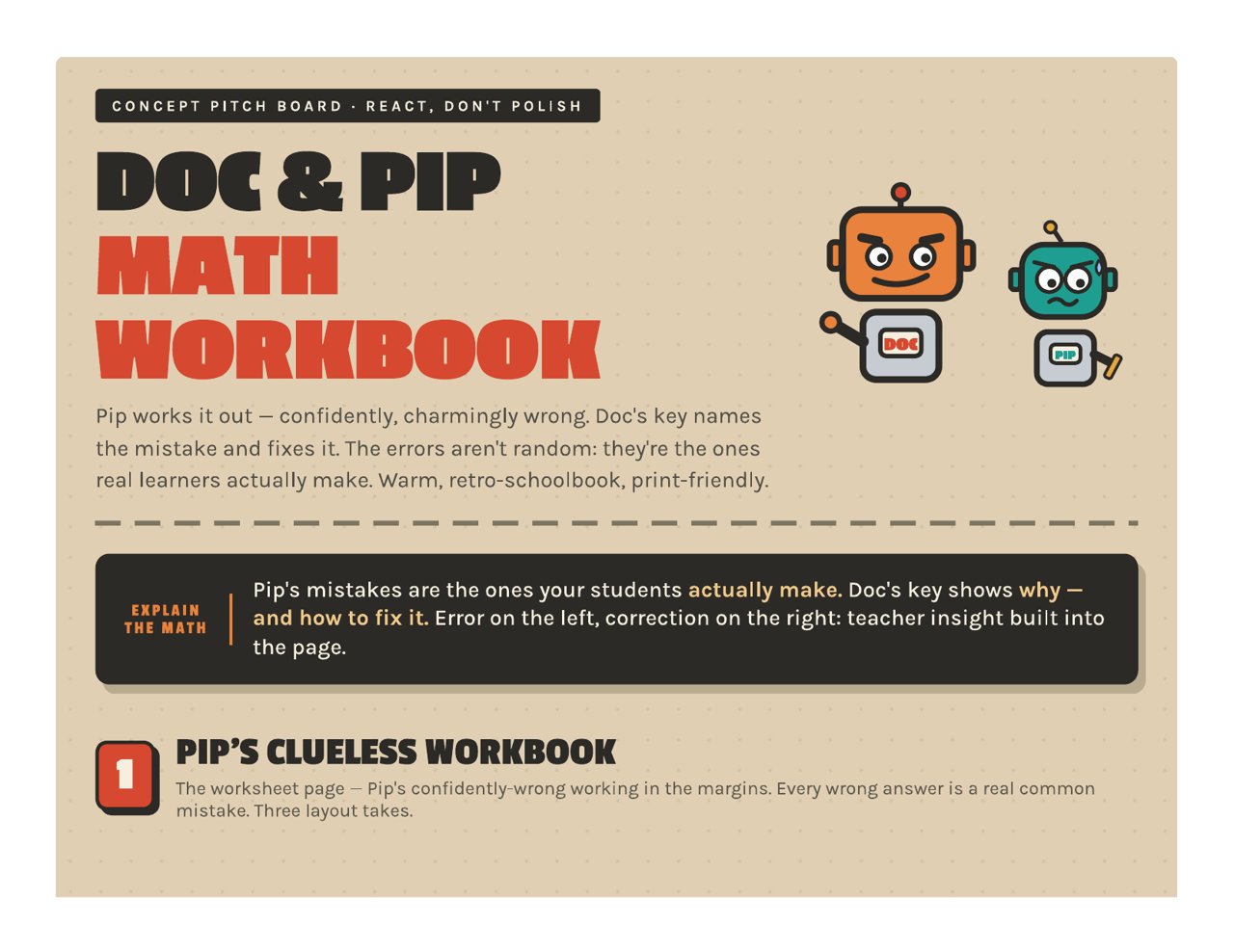
Doc explains too hard. Pip gets it too late. The room fills the gap between them - and that gap is where the learning happens.
AI Wordplay! Explain the MAth! A short brobot exchange fires. The room laughs. Then something clicks. For anyone who was ever told they were bad at math.
Bring the Brobots to your room
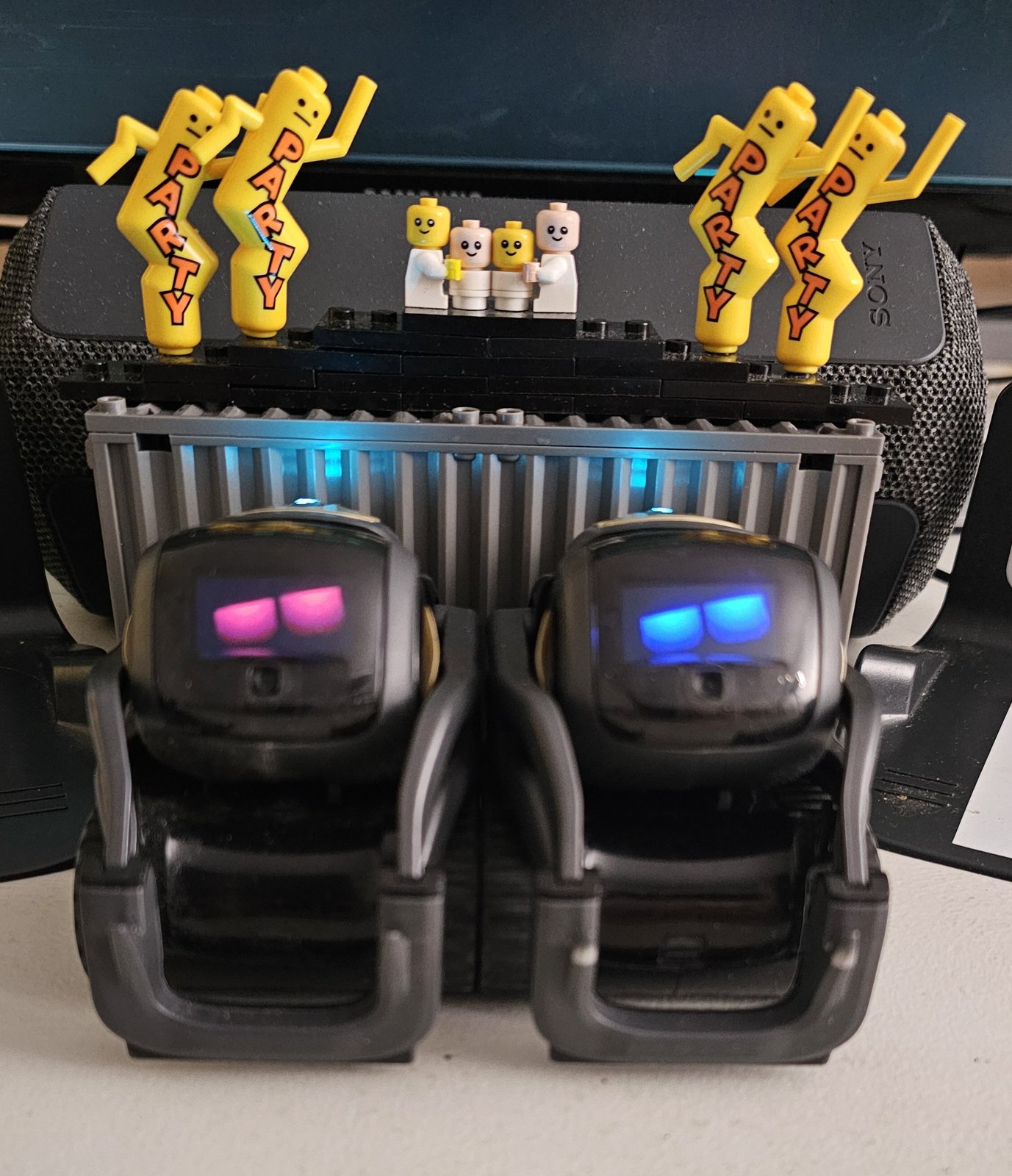
Birthdays and BBQs to start - paid and volunteer. Every price comes by reply, in CAD.
Got your own Vector robots on Wire-Pod? GOPOD is free and open: GOPOD Yourself on GitHub
CRUSHN8R CREW'd Newsletter
Live gigs are announced here first. Join the CREW.